netviz web
netviz web opens an inventory in the browser and draws it as you edit it,
with an info box on every node and link. It has two faces, and which one you get
is decided by what you point it at:
- a folder — an editing session. The server holds the loaded tree, the page
lists its files and the documents in them, and with
--writethe browser can change them. This is the one to use for an inventory. - anything else — a file, a pipe, or nothing — a scratchpad. One YAML document stream, held in the browser, rendered as you type, written nowhere. This is the one to use for a snippet or a paste.
Synopsis
netviz [GLOBAL OPTIONS] web [OPTIONS] [SOURCE]
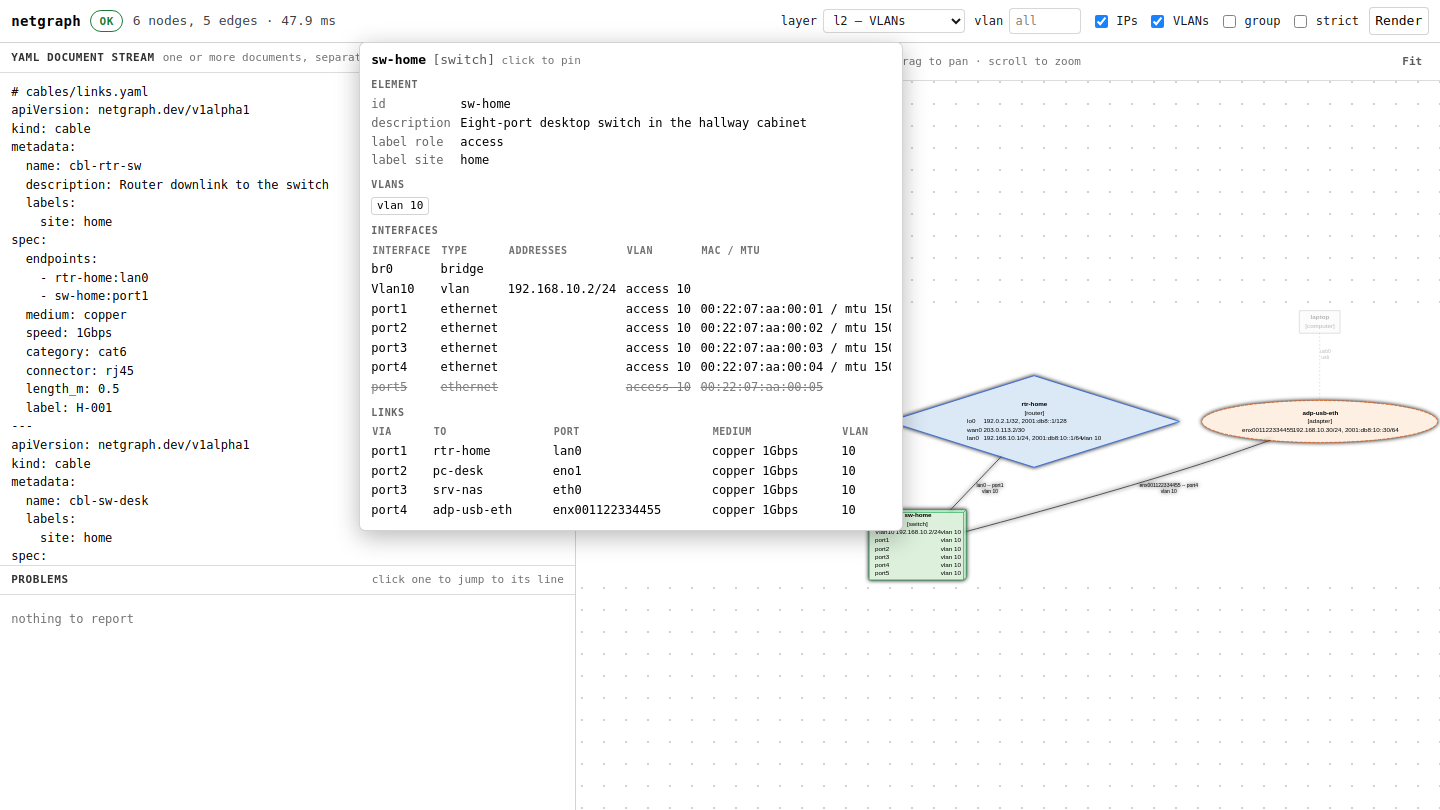
Hovering sw-home in examples/home-lab: every
port, its addresses and VLAN mode, and what each one is cabled to.
The editing session
netviz web ./inventory                # read-only: browse the tree and its diagram
netviz web ./inventory --write        # read-write: save, undo and redo from the page
The window is three panes. On the left is the inventory: every file the loader would read, grouped by namespace, with the documents each one declares listed under it by kind and name. In the middle is the file being edited and the problems found in the tree. On the right is the diagram.
The panes are wired to each other, which is the point of the command:
- Selecting a file opens it, whole, in the editor.
- Selecting a node in the diagram reveals the document that declares it — the right file, scrolled and selected at the right line. The shape carries the element's address, the address is in the file list against a file and a line, and that mapping comes from the same load the diagram was built from.
- Clicking a problem navigates to its file and line, opening the file if it is not the one on screen.
- A problem with a mechanical repair grows a
fixbutton, which applies it as one logged, undoable gesture. Where a rule admits two repairs there are two buttons and no default, because choosing between them is not the tool's to make. It is the same cataloguenetviz validate --fixuses, under the same gate: the repair is thrown away unless re-validating shows the finding gone and no rule reporting more than it did. Fixing a finding lists them.
Every file's state is shown as it is, not as it would be convenient. A file
you have typed into is unsaved. A file that changed on disk while you had
unsaved edits in it is conflict, and netviz will not resolve that for you: it
says so and leaves both versions alone until you decide. A file that was deleted
underneath you says deleted on disk.
Three consequences of that, because they are the ones people meet:
- Saving text that is already on disk still clears the badge. Nothing is written — the bytes are the bytes — but the badge is about the gap between the pane and the file, and there is none.
- A gesture on the diagram is applied to the file, not to the pane. If you
have unsaved edits in the file it rewrites, the change goes to the file and the
pane becomes a
conflictholding your text. It is the same rule as an edit made in$EDITOR: unsaved text is never thrown away to make a picture tidy. - Deleting an element closes its file if the pane was showing it and had
nothing unsaved in it — an editor still offering to save a document you just
deleted is one Ctrl-S away from putting it back. With unsaved text in it the
pane stays, badged
deleted, because that text is now the only copy.
A conflict is resolved by saving again, which is what the message offers: the
second save is a write over the version you were told about, not over whatever
happens to be there when it lands. If the file moves a third time in between,
it is refused again — the precondition is never dropped, only re-aimed.
The guided tour
The first time you open a session, the page offers a sixty-second tour. Take it
with Enter, decline it with Esc — declining is remembered,
and Ctrl-K → Take the guided tour runs it again whenever you want it.
It creates a device, cables it to one of yours, moves its document to another file, opens the changes drawer on the YAML all three wrote, and undoes the lot. The point is the mapping: every shape on the canvas is a document, so a shape cannot appear without a file appearing, and undoing the gesture brings the bytes back.
It never touches your inventory. Starting the tour copies the tree — only
the documents the loader reads, plus netviz.toml — into a temporary
directory and points the page at a second session over the copy. That session is
always writable, so a read-only netviz web DIR can take the tour too; the
panel names both directories so there is no doubt which one is being written.
Finishing, skipping or closing the tab deletes the copy, and so does stopping
the server.
Any step may be refused — it is the real write path, and it is allowed to say no. The tour shows the refusal and carries on to the next card.
Writing
--write is off by default, and it is refused unless the server is bound to
loopback — publishing an endpoint that changes your inventory is not something a
flag should let you do by accident. Without it every read works and every write
answers 403.
With it:
- Ctrl-S writes the open file back. The write carries the content hash the file was read at; if the file moved underneath, the save is refused and shown as a conflict rather than overwriting the other edit. Saving again after that overwrites deliberately.
- Ctrl-Z / Ctrl-Y undo and redo. The stack lives on the server, so it survives a page reload and a second tab sees the same history. Each entry is the exact inverse the mutation layer produced, so an undo restores bytes — the comment style, the quoting and the reference spellings of every document a rename rewrote.
- A change that would break the tree is refused, listing the problems, and
can then be written anyway. This is the same gate
netviz editapplies: an inventory that already failsvalidatecan still be edited, one that would gain a new error cannot without saying so.
Every write goes through netviz.edit — the same typed, reversible,
comment-preserving operations netviz edit applies from the command
line. The server constructs no YAML of its own, so untouched lines are not
rewritten and a diff of an edit shows the edit.
Reviewing what you changed
The Changes button opens a drawer listing every gesture the session made, newest first. One entry per gesture rather than per operation: deleting a switch is one line, not the five operations it became. Each carries
- the YAML hunk it wrote, as a unified diff with
a/–b/prefixes, so it pastes into a patch file without editing; - its label, which reveals the document it changed at its line — the same mapping a click on the diagram uses, run from the log instead;
- Revert, which puts that one change back.
A revert is a new change, not a rewind. It applies the gesture's own inverse as a fresh edit, which is itself logged and itself undoable, so reverting the third of ten gestures leaves the other nine alone. When one of those nine depended on what the third one did, the revert is refused with the reason and nothing is written — which is the honest outcome, and the one an undo stack cannot give you.
Opening the drawer also repaints the canvas as a diff: added elements green,
removed ones red and dashed but still in place, changed ones amber with a badge
naming the fields that moved, everything untouched faded. The since menu
chooses what it is drawn against —
this session started |
the tree as this page first saw it. The default: "what have I done this afternoon" is the question, and neither git nor the undo stack answers it. |
git HEAD |
HEAD as the inventory root looks in it. Offered only when the root is in a repository, because an option that always fails is not an option. |
It is the same overlay netviz diff draws, from the same
changeset — the drawer and the diagram are two views of one answer.
Copy commands hands the whole session over as a list of
netviz edit invocations, in the order they happened, for a
pull-request description or somebody else's terminal. The rendering is never
lossy; see docs/editing.md.
The history timeline
The inventory is a folder of YAML in a repository, so its whole history is
renderable. History, above the canvas, opens a scrubber along the bottom of
it, over the commits netviz log lists — and the diagram becomes
the diff each one carries against its parent as you step:
 ▶  ◀◀  ────────────●───────  ▶▶   Now   ×
 e58b3c3a0  Add a lab switch   Scrubber · 2026-08-14   1 device added
Oldest on the left. Beside the control is the commit itself — the abbreviated hash, its subject, its author and date, and the one-line summary of what it did to the network — because a picture with a hash under it places nothing in time.
| Control | |
|---|---|
| the slider | Any commit in the range. It repaints as it is dragged; ground already covered comes back out of the cache. |
◀◀ / ▶▶ |
One commit older or newer. Alt-Left and Alt-Right. |
▶ |
Play: step forward by itself, about a frame a second, until the newest revision or until one that will not load. Alt-P. |
| Now | Leave the history and draw the working tree again. Escape does the same. |
Each frame is arranged the way that revision arranged it. Both sides of the diff are read out of the commit, layout document included, so a diagram that was hand-placed in March is still hand-placed when you scrub back to March — and one placed since is not retro-fitted onto a picture that never had it.
The history and the changes drawer are two overlays on one canvas, so opening either puts the other away. The legend means the same four things in both.
What it will not pretend
- A revision whose inventory does not load stops the playback and says which revision and why, in the place the summary would have gone. It is not skipped: a commit that broke the tree is the one worth stopping on.
- A revision from before the inventory existed is an empty network, not an error, so the commit that first added the folder reads as the whole network arriving — noted as such beside the summary.
- A repository with more history than the bound is truncated to the newest,
and the bar says "the newest 100 of 312 revisions" rather than implying that
is all there ever was. The bound is
[history] max-revisionsinnetviz.toml, 100 by default; seenetviz log, where an explicit range wider than it is refused outright rather than truncated. - A tree that is not in a repository says so where the commit would be, rather than offering a control that does nothing.
What it costs
A frame is one inventory read, one changeset and one Graphviz layout — the same work drawing the tree at all costs, plus the read and the diff. Two things keep that interactive:
- Rendered frames are cached by tree hash, in pairs: the before tree and the after tree. Scrubbing back over ground already covered is a dictionary lookup, and so is a revert, a cherry-pick or a rebase that lands on a pair of trees already drawn.
- Neighbouring revisions share their loaded state and their parsed files. Stepping reads one revision rather than two, and the parse cache means that read parses the files the commit touched rather than the two thousand it did not.
tools/bench_history.py measures it. On the 1056-device benchmark tree, where
one plain render of the working tree is about 1.5 s, a step is about 1.5× that
and a frame already drawn comes back in about 13 ms.
Reconciliation
The session does not own the files. watchfiles watches the folder exactly as
netviz watch does, so an edit made in $EDITOR, a git checkout, or a second netviz process bumps the tree revision — and the page is
told, over a server-sent-events stream, the moment it happens. If the watch
cannot start, the command says so rather than leaving a page that is quietly
stale.
The event says what moved, which is what makes the page's response proportionate to the change:
- a save of one file refetches that file's row, not the file list;
- a revision that does not change the drawing of the layer on screen does not
redraw it — the page sends the fingerprint of the picture it is showing and
the server answers "unchanged" rather than running Graphviz. Editing a
description on a 1056-device tree went from 1.7 s to 185 ms; see
docs/follow-ups.mdentry 18 for the harness and the numbers.
The stream is an optimisation, and the page works without it. A proxy that
buffers responses, a browser without EventSource, a stream that will not open:
any of them drops the page back to polling /api/state once a second, which
replays the very same events out of the server's ring buffer. The indicator above
the file list says which of the two you are on. Nothing is writable through the
stream and no write depends on having read one.
More than one client
A session is shared — two tabs, or two people on the same machine — and it says so rather than leaving them to collide:
- every connected page is listed above the file list, with what it is looking at and what it is editing in the tooltip;
- what somebody else has selected is drawn on the canvas as a faint dashed halo, distinct from the highlight your own hover gives;
- a file somebody else has unsaved edits in is badged
in use.
All of that is advisory. It blocks nothing: the row still opens, the file still saves, and presence expires by itself if a tab goes away without saying so. The only things that can refuse a write are the ones that are checks on the tree itself — the content hash of a whole-file save and the tree revision of an operation batch. A soft lock built on a heartbeat would be a way to lock an inventory by closing a laptop lid.
So the conflict story is unchanged by having company: two clients saving the same
file gives the second a 409 carrying what is really on disk; a save racing an
$EDITOR write gives the same; and an undo issued in one tab rewrites the files
and moves the buttons in the other, which is what a server-side history means.
The API
The page is a client of a small JSON API, and so can anything else be. All of it
is on loopback and none of the write routes exist unless --write was given.
| Route | What it answers |
|---|---|
GET /api/bindings |
Every command the page has, its section, its keys, what it needs and what it does — plus the element kinds this build knows. Answered in both faces; it is netviz.web.bindings, which is also what the table below is generated from. |
GET /api/state |
The tree revision, whether this session writes, the undo/redo depth, and who else is connected. ?since=<id> adds the events published after that id — the polling client's half of the push channel. ?client=<id> keeps that client's presence alive. |
GET /api/events |
A text/event-stream of tree-changed, file-changed, history-changed, disk-changed, presence, opening with hello and beating every 15 s. Resumes from Last-Event-ID; a resume point older than the ring buffer opens with resync, meaning refetch. |
POST /api/presence |
{"client": …, "selection": [ … ], "editing": [ … ]} — what this client is looking at and has unsaved edits in; answers with everybody. {"leaving": true} drops it at once. Advisory, and the one route here that a read-only session still accepts, because it writes nothing. |
GET /api/tree |
Every file, its content hash, its documents, and each document's kind, name, address and line. ?path=a.yaml&path=b.yaml answers for those files only, with partial: true and a missing list; ?diagnostics=0 leaves out the findings, which cost a validation of the whole tree either way. |
GET /api/graph?view=l2 |
The resolved graph as an embeddable SVG, its info-box records, its problems, its stored geometry and its annotations — the same payload netviz render -f json publishes, which is how the canvas knows where a note or a zone is, an arranged drawing having painted the zone into the background with no id on it. &annotations=0 leaves both the drawing and the payload without them. graphHash fingerprints the drawing; passing it back as ?known= answers unchanged: true with no SVG when this revision would draw the same picture, having skipped the layout. |
GET /api/file/<path> |
One file's text and the hash a write of it must quote. |
PUT /api/file/<path> |
That file back: {"text": …, "hash": …}. A stale hash is 409; a new error is 422, listing them; "force": true overrides the second, never the first. |
POST /api/ops |
{"revision": …, "ops": [ … ]} — a batch of edit operations, applied atomically. Answers with the applied operations, their inverses, the files changed and the tree's diagnostics. |
POST /api/undo, POST /api/redo |
Move the server-side history one step. |
GET /api/changes |
The session's log — one entry per gesture, with its hunk, the files and addresses it touched, and the netviz edit lines that replay it — plus the whole session as one command list and the baselines this tree can be diffed against. |
GET /api/diff?against=session |
The same payload /api/graph answers, drawn as a diff, with diff holding the marks per node and edge and diff.changeset the whole plan. against=git compares with HEAD. |
GET /api/history |
The commits that changed this inventory, newest first, each with its hash, parents, author, date, subject and the hash of the inventory tree at it. bound is the ceiling, total how many there are and truncated whether the list is the newest of more. ?limit= asks for fewer. |
GET /api/frame?rev=<commit> |
One of them, drawn as the diff against its parent: the /api/diff payload plus the commit's own facts and the one-line summary of what it did. ?known= works as it does on /api/graph. A revision that will not load answers 200 with status: failed and the reason — it is a fact about the history, not a bad request. |
POST /api/revert |
{"id": 3, "revision": …} — put one logged gesture back. |
POST /api/fix |
{"rule": "W138", "message": …, "fix": "prune", "revision": …} — apply the mechanical repair for one diagnostic, as one gesture. The finding is named by rule and message, not by its place in the list, so a stale list is refused rather than misapplied. fix picks between the repairs a rule offers more than one of. |
<path> is relative to the inventory root and is checked, not normalised: an
absolute path, a .., a component the loader skips and a suffix that is not
YAML are each refused by name. No other request ever becomes a file name.
Right-clicking
Right-click the diagram and you get the handful of commands that make sense where you clicked. On an element, on a link, and on the paper between them — three menus, listed below.
Two things it is not. It is not a second set of gestures: every row runs a
command from the table under that command's own id, so the
menu, the palette and the key are three ways to the same one implementation.
And it is not a full list: the palette is one keystroke away with all fifty in
it, and a menu long enough to need reading has stopped being quicker than
typing. All commands… is the last row of the canvas menu for exactly that.
What it does add is a target. Right-clicking a shape focuses it first, so
Delete it deletes the one you pointed at rather than the one the keyboard was
left on, and the menu's heading is the element's address so there is no doubt
which that is. Every row also prints its own shortcut, the same way a palette
row does: use the menu for a week and you will not need it.
A row that cannot run now is greyed, with the reason on it — this session is read-only; restart it with --write — rather than missing. Escape closes
it, the arrow keys walk it, and Shift-F10 or the menu key opens it on
whatever the diagram has focused, because a menu only a mouse can open is a set
of commands a screen-reader user does not have.
Right-clicking a bend on a link still removes that bend, and shows no menu: the handle is a control of its own, and burying its one gesture two rows deep would be a loss. Right-clicking anywhere off the canvas is the browser's own menu, untouched.
Right-clicking a multi-selection
| Offers | Same as | Needs |
|---|---|---|
| Align left | Align left — palette only | --write |
| Align centres | Align centres — palette only | --write |
| Align right | Align right — palette only | --write |
| Align top | Align top — palette only | --write |
| Align middles | Align middles — palette only | --write |
| Align bottom | Align bottom — palette only | --write |
| Distribute horizontally | Distribute horizontally — palette only | --write |
| Distribute vertically | Distribute vertically — palette only | --write |
| Snap to the grid | Snap to the grid — palette only | --write |
| Copy | Copy the selection — Ctrl-C |
a folder |
| Cut | Cut the selection — Ctrl-X |
--write |
| Duplicate | Duplicate the selection — Ctrl-D |
--write |
| Set a field on all of them… | Set a field… — e |
--write |
| Remove a field from all of them… | Remove a field… — palette only | --write |
| Move their documents… | Move to another file… — palette only | --write |
| Move into a namespace… | Move into a namespace… — palette only | --write |
| Clear the selection | Clear the selection — Ctrl-Shift-A |
— |
| Delete all of them | Delete the selection — Delete |
--write |
Right-clicking an element
| Offers | Same as | Needs |
|---|---|---|
| Inspect it | Open the inspector — Enter |
a focused element |
| Pin the inspector | Pin the inspector — Space |
a focused element |
| Cable it to… | Connect this element… — c |
--write |
| Add an interface… | Add an interface… — i |
--write |
| Note about it… | Add a note to the diagram… — Shift-N |
--write |
| Copy | Copy the selection — Ctrl-C |
a folder |
| Cut | Cut the selection — Ctrl-X |
--write |
| Duplicate | Duplicate the selection — Ctrl-D |
--write |
| Rename it… | Rename the focused element… — F2 |
--write |
| Change how it looks… | Restyle the selection — palette only | --write |
| Set a field… | Set a field… — e |
--write |
| Remove a field… | Remove a field… — palette only | --write |
| Move its document… | Move to another file… — palette only | --write |
| Delete it | Delete the selection — Delete |
--write |
Right-clicking a link
| Offers | Same as | Needs |
|---|---|---|
| Inspect it | Open the inspector — Enter |
a focused element |
| Add a bend | Add a bend to the focused link — b |
--write |
| Straighten it | Straighten the focused link — Shift-B |
--write |
| Route it… | Change how the link is routed… — r |
--write |
| Pin the computed route | Pin the route the renderer worked out — Shift-R |
--write |
| Put the label back on the line | Put the link's label back on the line — palette only | --write |
| Note about it… | Add a note to the diagram… — Shift-N |
--write |
| Change how it looks… | Restyle the selection — palette only | --write |
| Set a field… | Set a field… — e |
--write |
| Disconnect it | Delete the selection — Delete |
--write |
Right-clicking a note, an area or a legend
| Offers | Same as | Needs |
|---|---|---|
| Edit the text… | Edit the note's text… — Shift-E |
--write |
| Delete it | Delete the selection — Delete |
--write |
Right-clicking a namespace box
| Offers | Same as | Needs |
|---|---|---|
| Fold or unfold it | Fold or unfold this namespace — f |
— |
| New in it ▸ (one row per element kind) | Create an element… — n |
--write |
| Paste into it | Paste — Ctrl-V |
--write |
| Move the selection into it… | Move into a namespace… — palette only | --write |
| New namespace inside it… | New namespace… — palette only | --write |
Right-clicking the canvas
| Offers | Same as | Needs |
|---|---|---|
| New ▸ (one row per element kind) | Create an element… — n |
--write |
| New namespace… | New namespace… — palette only | --write |
| New note | Add a note to the diagram… — Shift-N |
--write |
| Paste here | Paste — Ctrl-V |
--write |
| Selection tool | Selection tool — v |
— |
| Pan tool | Pan tool — h |
— |
| Show another layer… | Switch layer… — palette only | — |
| Toggle icons | Toggle icons — Alt-K |
— |
| Fit the diagram | Fit the diagram — 0 |
— |
| Undo | Undo — Ctrl-Z |
--write |
| Redo | Redo — Ctrl-Shift-Z |
--write |
| Show what changed | Changes drawer — Ctrl-B |
a folder |
| All commands… | Command palette — Ctrl-K |
— |
New ▸ opens one row per element kind, and picking one opens the create form
with that answer already filled in — the same form n opens, writing the same
document through the same netviz edit create.
The keyboard
Everything this page does is reachable without a pointer, and the page says so out loud rather than making you find out. There are three ways in, and they are three views of one table:
Ctrl-K— the command palette. Every command below, fuzzy-matched by name, plus everything the page can go to: every element address in the diagram and every file path in the inventory. Each row prints its own shortcut, so the palette is also how the bindings are learnt. A command that cannot run now is shown greyed with the reason — "this session is read-only; restart it with--write" — rather than quietly missing.?— the shortcut sheet. The table below, in a dialog.- the keys themselves.
A fourth, for the pointer: right-clicking the diagram offers the few of these that fit what is under the cursor, each row printing the chord that also runs it.
A chord written Ctrl-… means the platform's command modifier: ⌘ on a Mac. A
single letter is a canvas gesture and fires only while the diagram has focus —
n creates a device there and types an n in the YAML pane, which is the
distinction the Where column makes. v and h are the two exceptions:
which pointer tool is up is a question about the mouse, not
about what the keyboard last landed on, so they answer from anywhere but a text
field.
The pointer tool
A drag across the paper means two things and both are right: to one person it is a region being selected, to the next it is the paper being moved. Nothing in the gesture tells them apart, so — as in every drawing tool — it is a mode, and the toolbar above the canvas says which one:
| Tool | Key | A left-drag |
|---|---|---|
| Select (default) | v |
Draws a rubber band on the paper; moves a shape, a note, a namespace frame or a bend that can be moved; pans when it started on something none of those claim. |
| Pan | h |
Moves the diagram, wherever it started. Nothing in the drawing can be nudged out of place by a press that was meant to scroll. |
The cursor is the other half of the answer: an arrow under the selection tool, an open hand under the pan tool, closed while the pan is happening. It is the hand everywhere inside the canvas — over a switch and over a bend handle as much as over the paper — because that is exactly where the two tools differ.
Neither is ever more than a modifier away, which is what keeps the mode from being a trap:
- Hold
Altand the other tool takes that one gesture.Alt-drag bands while the hand is up and pans while the arrow is; the tool is where you left it when you let go. (This is the sameAlt-drag that panned before there was a mode, so nothing anybody's fingers already knew has changed.) - The middle button always pans, whichever tool is chosen.
- Clicking still selects under either tool. Only dragging is the mode — and a pan that actually travelled swallows the click behind it, so letting go over a switch does not open it.
Right-clicking the canvas offers both tools, because the press that wanted the other one has already happened over the diagram and the toolbar is at the far corner of it.
Driving the diagram
Tab reaches the canvas like any other control; the diagram is one stop on the
page's tab order and never a trap. From there the arrow keys walk it, preferring
the elements the focused one is linked to, so a path is followed rather than
a grid swept. Enter opens the inspector — and, in a session, the document that
declares the element, at its line. n, c and Delete are the create, connect
and delete gestures; each opens a small prompt whose element field is already
filled in with whatever is focused, so the same command works from the palette
with nothing focused at all.
Two rings, deliberately different: focus is a solid violet halo — where the keyboard is — and selection is a long dash, with somebody else's selection a short one. Three patterns, not three shades, so they are told apart without colour.
Delete takes what cannot survive
On the command line, deleting a cabled switch is refused and you are told to
pass --cascade. On a canvas that would be theatre: somebody who dragged a box
to the bin has already said what they want, and a gesture that stops to ask for
a flag it will then be given is a gesture with one extra step in it. The
editor always cascades. What it owes you instead is the truth about what that
costs, before the fact and once:
Delete 1 element?
switches/sw-home
These cannot survive it and go too: cables/cbl-rtr-sw — one end of it is switches/sw-home:port1 …
8 layout entries that placed them are dropped.
This is one change: Ctrl-Z puts all of it back.
That list is not read off the picture. GET /api/cascade asks
netviz.edit for the set it will
actually remove, so it includes the things a diagram cannot show you: the tunnel
three levels up that runs over a cable that runs to the switch, the note
anchored to it in a view you are not looking at, the group that lists it as a
member, and the coordinates in every kind: layout document that placed any of
it. A client-side guess would get the cables right and everything else wrong.
A delete that takes nothing but what you named does not ask at all — a confirmation that always appears is one that stops being read. Deleting an uncabled spare switch, a note, an area or a legend is immediate.
And the whole of it is one entry in the undo stack: the elements, the
annotations and the geometry go together, and one Ctrl-Z brings them back
byte for byte, comments included.
Selecting several things
Most of the editor acts on a selection, and a selection is a set:
| Gesture | What it does |
|---|---|
| drag on the paper | A rubber band. Everything it encloses is selected; hold Shift to add to what was already there rather than replace it. A drag that starts on a shape moves it, or pans when it cannot be moved. Needs the selection tool, which is the default — hold Alt to band under the pan tool. |
Shift- or Ctrl-click |
Adds one element, or takes it back out. Works on the outline entries too. |
Ctrl-A |
Everything the current view draws — including whatever is culled off screen. Only on the canvas: Ctrl-A in the YAML pane is still the text. |
Shift-arrow |
Extends along the same neighbour search the arrow keys use, so a trunk and everything hanging off it is collected without a pointer. |
Escape |
Clears it, before it closes anything else. |
The selection is held as element addresses, not as shapes, which is what lets it survive a redraw — a save, an undo, somebody else's edit — and lets a culled element half a screen away stay in it. The ring is drawn for the ones on screen; the count is on the diagram outline, where a screen reader hears "8 elements, 3 links, 2 selected" and each selected entry as pressed.
With more than one thing selected, the gestures that can mean a set act on all of it, as one change:
- Delete asks once — listing what goes — and writes the lot as a single
entry in the undo stack. One
Ctrl-Zputs all of it back. See Delete takes what cannot survive. - Set a field, Remove a field and Move to another file apply to
every selected element in one batch, so twelve switches gain
spec.sitein one validated, conflict-checked write. - Align, distribute and snap to grid appear, from the palette or by
right-clicking inside the selection. Each writes one reviewable diff into the
kind: layoutdocuments that hold the arrangement — seedocs/editing.md— and the grid pitch is the inventory's[editor] grid.
Right-clicking inside a multi-selection opens the selection's own menu rather than the element's: the subject is the set, and "Rename it…" on eleven shapes would have to mean whichever one the pointer happened to be over.
A thousand devices
Above four hundred elements the canvas stops drawing all of them at once. Two things happen, and both are visible:
Only what is on screen is drawn. Everything more than half a screen outside the viewport keeps its place in the document and loses its contents until you pan back to it. The status line says so — drawing 140 of 2106 in view (pan, or Ctrl-K to find) — because a canvas that is quietly missing things is worse than a slow one. Nothing about reaching an element changes: the arrow keys, the outline, the command palette and find-in-diagram all work from the records rather than from the drawing, so selecting something on the far side of the diagram brings it back and pans to it.
Zoomed out, the labels come off. Below the scale at which a device name is a smudge, the names and the icons are dropped and each namespace grows a dashed frame with its name and how many elements are in it. Zoom back in and they return. The zoom range is the drawing's own, not a fixed multiple, so a label on a thousand-device diagram can always be reached.
The first layout of an inventory that size is a real Graphviz run and takes a
second or two; the status line counts while it happens rather than sitting
still. If a redraw after dragging a node feels slow, it is: a diagram with
some positions stored has to be laid out twice, and
netviz layout --write places the rest and takes the redraw to a
fraction of it. The measured ceilings are in
docs/follow-ups.md entry 20.
Routing a cable
A link is geometry as much as a node is
(docs/schema.md §18), and once the
view is arranged it can be routed here. Click a link to select it; double-click
the line to drop a bend where you clicked; drag a bend to move it; drag the
hollow midpoint handle to insert a bend and place it in one motion;
right-click a bend to remove it. A label the inventory has already pinned
gets a handle of its own, which slides it along the route and lifts it off.
Each of those is also a command, because a bend that can only be placed with a
mouse is a bend somebody working from the keyboard cannot place at all: b adds
one half way along the selected link, Shift-B straightens it, r sets its
routing style — spline, orthogonal or straight, on this link alone — and the
palette puts a moved label back on the line. On a view that is not arranged they
refuse with the fix, netviz layout --write, rather than doing nothing: a
diagram Graphviz is still routing has nowhere to keep a bend.
Nothing here is a browser-side model of the arrangement. Letting go of a handle
posts one set-link-geometry operation
(docs/editing.md), the server rewrites the
kind: layout document through the same comment-preserving path
netviz layout uses, and the canvas repaints from the render
that follows — so what you see here is what netviz render draws, and the
gesture is one entry in the changes drawer with a YAML hunk under it. The line
under the cursor is drawn by a port of netviz's own router, which
tests/test_browser.py runs against the Python it mirrors on every CI run, so a
drag cannot land somewhere the render would not.
Writing on the diagram
The commentary of
docs/schema.md §21
— a callout, a zone, a key — is edited here the way a cable's route is.
Shift-N drops a note at the pointer and opens it for typing; right-clicking
an element or a link and choosing Note about it… anchors the note to that
instead, so it follows the device when the diagram is laid out again. A note is
retyped by double-clicking it, or with Shift-E on a selected one:
Ctrl-Enter or clicking away writes it, Escape leaves it alone. Dragging a
note moves it, its corner resizes it, and a zone pinned to a rectangle is dragged
by its outline and resized by its corners. Delete removes whichever is
selected. Alt-N hides the lot, which changes no file: commentary is never
topology, so it is a way of looking at the diagram rather than a way of changing
it.
A zone drawn round its members has no box to move — it is wherever those
devices are — so dragging it is refused with that sentence rather than quietly
turned into a rectangle. Everything else lands as one create-annotation,
set-annotation or delete-annotation batch through /api/ops, which is one
entry in the changes drawer and one Ctrl-Z; the rules are in
docs/editing.md.
Without a screen
The rendered SVG is inert by default: Graphviz emits shapes, not semantics. This page adds them from the same records the info box is built from, so there is one description of an element rather than two that drift:
- every node and link carries a role and an
aria-label— "sw-home, switch, 8 interfaces, linked to rtr-edge on eth0"; - the canvas is an
applicationthat says which element is current, so arrowing around it is announced; Alt-4opens the outline — the whole view as a list, one line per element, which is both the screen-reader fallback and the fastest way to find something by name. It is off screen until focused and a real panel once it is;- every applied, refused and reverted gesture is announced in a live region, once. A refusal interrupts; everything else is polite.
The interface follows prefers-color-scheme with a palette per scheme — every
colour clears 4.5:1 against its own background, which a single palette used on
both cannot — and honours prefers-reduced-motion. Where a colour carries
meaning it is never alone: the diff legend prints +, ~ and −, the same
sigils the diagram draws, and the three diff line styles differ as well as the
three hues.
tests/test_browser.py runs axe-core over the page on every CI run and fails on
a new WCAG 2.1 AA violation, and drives one end-to-end test — create a device,
cable it, undo both — without dispatching a single mouse event.
The bindings
Everywhere
| Keys | Command | Where | Needs | What it does |
|---|---|---|---|---|
Ctrl-K / Ctrl-Shift-P |
Command palette | anywhere | — | Every command on this page, searched by name — and every element address and file path in the inventory, so one field is also 'go to'. |
? / F1 |
Keyboard shortcuts | anywhere | — | This table, rendered from the bindings the page actually registered. |
ContextMenu / Shift-F10 |
Open the context menu | the diagram | — | What the pointer's right-click offers, on whatever the diagram has focused — the element, the link, or the canvas itself when nothing is. |
| palette only | Take the guided tour | anywhere | a folder | Sixty seconds that create a device, cable it up, move its document, show the YAML that changed and undo the lot — on a throwaway copy of this inventory, so nothing here is written to your files. |
Escape |
Close what is open | anywhere | — | The palette, the reference, a prompt, the changes drawer, the inspector — in that order. |
Alt-1 |
Focus the inventory list | anywhere | a folder | The file list. Arrow keys move down it; Enter opens a file. |
Alt-2 |
Focus the YAML pane | anywhere | — | The text of the open document. Escape leaves it again. |
Alt-3 |
Focus the diagram | anywhere | — | Puts a focus ring on an element and turns on the gestures below. |
Alt-4 |
Focus the diagram outline | anywhere | — | The diagram as a list a screen reader can read straight through: one line per element, with what it is linked to. |
Ctrl-Enter |
Render now | anywhere | — | Draw the diagram again without waiting for the editor to settle. |
Ctrl-Shift-Enter |
Validate the inventory | anywhere | — | Re-run the checks and move focus to the problems list. |
Moving around
| Keys | Command | Where | Needs | What it does |
|---|---|---|---|---|
ArrowRight / ArrowLeft / ArrowUp / ArrowDown |
Move to the adjacent element | the diagram | — | Steps to the nearest element in that direction, preferring one this element is linked to — so a whole path can be walked with one hand. |
l / Shift-L |
Cycle this element's links | the diagram | — | Focuses each cable or tunnel that terminates here in turn, so a link can be inspected or removed without a pointer. Tab is left alone: the diagram is one stop on the page's tab order, never a trap. |
Home |
First element | the diagram | — | The first element of the outline, which is the diagram in reading order. |
End |
Last element | the diagram | — | The last element of the outline. |
Enter |
Open the inspector | the diagram | a focused element | Everything known about the focused element, and — in a session — the document that declares it, opened at its line. |
Space |
Pin the inspector | the diagram | a focused element | Keeps the inspector up, and tells the other tabs what this one is looking at. |
v |
Selection tool | anywhere | — | The default cursor: a drag on the paper draws a rubber band, and a drag on a shape moves it. Hold Alt to pan without leaving it. |
h |
Pan tool | anywhere | — | The hand cursor: a drag anywhere moves the diagram, over a shape or a handle as readily as over the paper, so nothing can be nudged by accident while it is being read. Hold Alt to band without leaving it. |
Ctrl-G |
Go to element… | anywhere | — | The palette, opened over element addresses alone. |
Ctrl-O |
Open file… | anywhere | a folder | The palette, opened over the inventory's file paths alone. |
Ctrl-F / / |
Search with a query | anywhere | — | The selector language: 'kind = switch and not has vrf', 'within 2 hops of fw-edge', 'interface[address in 10.20.0.0/16]'. A bare word is a name match, as it always was. See docs/query.md. |
Alt-Enter |
Select what the query matched | anywhere | — | Puts every match in the selection, so a query feeds straight into a bulk edit, an alignment or a delete. Enter does it too, from the box. |
| palette only | Clear the query | anywhere | — | Empties the box, stops highlighting, and un-narrows the drawing. |
Ctrl-A |
Select everything in this view | the diagram | — | Every element and link the diagram is drawing, including the ones culled off screen. The canvas only — Ctrl-A in the YAML pane is still the text. |
Ctrl-Shift-A |
Clear the selection | anywhere | — | Escape does this too, before it closes anything else. |
Shift-ArrowRight / Shift-ArrowLeft / Shift-ArrowUp / Shift-ArrowDown |
Extend the selection | the diagram | — | Steps the way the arrow keys do — preferring an element this one is linked to — and adds what it lands on, so a trunk and everything hanging off it can be collected without a pointer. |
Editing the inventory
| Keys | Command | Where | Needs | What it does |
|---|---|---|---|---|
n |
Create an element… | the diagram | --write |
Asks for a kind and a name, and writes the document. 'netviz edit create'. |
c |
Connect this element… | the diagram | --write |
Cables the focused element to another, port to port. 'netviz edit connect'. |
Delete / Backspace |
Delete the selection | the diagram | --write |
Removes everything selected, or the focused element when nothing is, and everything that cannot survive it: the cables, the tunnels over them, the notes anchored to them, the coordinates that placed them. Asks once when that is more than you named, and writes the lot as one change. 'netviz edit delete --cascade' / 'disconnect'. |
Ctrl-C |
Copy the selection | the diagram | a folder | Puts the selected elements on the system clipboard as JSON — the documents themselves, plus any cable whose two ends are both selected. Paste it into another netviz window, or into a text editor to read it. 'netviz edit copy'. |
Ctrl-X |
Cut the selection | the diagram | --write |
Copy, and then delete what was copied — as one change, so one Ctrl-Z puts the documents back. Asks first, listing what goes. |
Ctrl-V |
Paste | the diagram | --write |
Writes the clipboard fragment into this inventory: new documents, with free names, the internal cables rewired to the copies, and positions offset from the originals — or dropped where you last right-clicked. A fragment from another inventory pastes the same way. |
Ctrl-D |
Duplicate the selection | the diagram | --write |
Copy and paste in one keystroke, without touching the system clipboard: each selected element gets a sibling called 'sw1-copy' beside it. 'netviz edit duplicate'. |
F2 |
Rename the focused element… | the diagram | --write |
Renames it and every reference to it. 'netviz edit rename'. |
e |
Set a field… | the diagram | --write |
A dotted path and a YAML value, on every selected element at once — or on the focused one when nothing is selected. 'netviz edit set'. |
| palette only | Remove a field… | anywhere | --write |
'netviz edit unset', across the whole selection as one change. |
| palette only | Move to another file… | anywhere | --write |
Moves the selected documents into a different file, together. 'netviz edit move'. |
| palette only | New namespace… | anywhere | --write |
Makes a namespace by putting something in it — the selection, moved there, or a new element created there. A namespace is a folder and a folder netviz would read is one holding a document, so an empty one is not a thing the inventory can record. |
| palette only | Move into a namespace… | anywhere | --write |
Re-homes the selection into another namespace: the typed form of dragging it into that container's box. The documents are rewritten into the folder and every reference to them is re-spelled. 'netviz edit move'. |
| palette only | Disconnect a cable… | anywhere | --write |
Removes a cable, leaving both devices. 'netviz edit disconnect'. |
b |
Add a bend to the focused link | the diagram | --write |
Drops a waypoint half way along the link, which the route then passes through. Double-clicking the line does the same at the point clicked. |
Shift-B |
Straighten the focused link | the diagram | --write |
Clears every bend, leaving the link to run directly between its two devices. The routing style and the label position are kept. |
r |
Change how the link is routed… | the diagram | --write |
Spline, orthogonal or straight, on this link alone. Clearing it takes the view's default back. Honoured by 'netviz render' as well as here. |
Shift-R |
Pin the route the renderer worked out | the diagram | --write |
Writes the bends netviz computed to keep this link clear of the boxes it passes into the layout document, so they become bends you placed: they stop being recomputed, they get a grab handle each, and moving a device no longer moves them. Refuses on a link that needed no detour, since there would be nothing to pin. |
| palette only | Put the link's label back on the line | anywhere | --write |
Undoes a nudged label, leaving it half way along the route where the renderer puts one nobody has moved. |
Shift-N |
Add a note to the diagram… | the diagram | --write |
Drops a note where the pointer is — or in the middle of the view when the keyboard asks — and opens it for typing. Right-clicking an element or a link anchors the note to it instead, so it follows what it is about. 'netviz edit create-annotation'. |
Shift-E |
Edit the note's text… | the diagram | --write |
A text box over the note itself, in the markdown subset §21 defines. Ctrl-Enter or clicking away writes 'spec.text'; Escape abandons it and writes nothing. Double-clicking the note does the same. |
i |
Add an interface… | the diagram | --write |
'netviz edit add-interface'. |
| palette only | Remove an interface… | anywhere | --write |
'netviz edit remove-interface'. |
Ctrl-Shift-Y |
Style inspector | anywhere | a folder | How the selection is drawn (§22), which layer each value came from, and the controls to change it. A change is written to spec.style, so the picture and the YAML stay one thing. |
| palette only | Restyle the selection | anywhere | --write |
Open the style inspector on what is selected. |
Arranging the diagram
| Keys | Command | Where | Needs | What it does |
|---|---|---|---|---|
| palette only | Align left | anywhere | --write |
Every selected element onto the leftmost one's left edge. |
| palette only | Align centres | anywhere | --write |
Onto the vertical axis half way across the selection. |
| palette only | Align right | anywhere | --write |
Onto the rightmost one's right edge. |
| palette only | Align top | anywhere | --write |
Onto the topmost one's top edge. |
| palette only | Align middles | anywhere | --write |
Onto the horizontal axis half way down the selection. |
| palette only | Align bottom | anywhere | --write |
Onto the bottommost one's bottom edge. |
| palette only | Distribute horizontally | anywhere | --write |
Equal gaps between the boxes, left to right, with the two outermost left where they are. Needs three. |
| palette only | Distribute vertically | anywhere | --write |
The same, top to bottom. |
| palette only | Snap to the grid | anywhere | --write |
Rounds each selected element's position to the pitch this inventory sets in 'netviz.toml' ([editor] grid, 20 points by default). |
The view
| Keys | Command | Where | Needs | What it does |
|---|---|---|---|---|
Ctrl-Shift-F |
Draw only what the query selects | anywhere | — | Narrows the drawing itself rather than highlighting inside it — the same narrowing 'netviz render --select' does. |
| palette only | Switch layer… | anywhere | — | Physical, l1, l2, l3, ipam, overlay, routing, rack, power, identity. |
] |
Next layer | anywhere | — | The next entry of the layer menu. |
[ |
Previous layer | anywhere | — | The previous entry of the layer menu. |
Alt-I |
Toggle IP addresses | anywhere | — | Whether the picture prints addresses. The inspector shows them either way. |
Alt-V |
Toggle VLANs | anywhere | — | Whether the picture prints VLAN membership. |
Alt-G |
Toggle namespace grouping | anywhere | — | Collapse each namespace into one box. |
f |
Fold or unfold this namespace | the diagram | — | Draws a namespace box as the single node it stands for, or opens it again — the container the pointer picked, or the one holding the focused element. The same folding 'netviz render --collapse' does. A view, not an edit: nothing is written, and how much of a diagram somebody wants to look at is not a fact about the network. |
Alt-N |
Toggle annotations | anywhere | — | Whether the notes, areas and legends of §21 are drawn. They are commentary, never topology, so hiding them changes nothing the tool concludes — only how much of the picture is somebody's explanation. |
Alt-K |
Toggle icons | anywhere | — | Whether each device is drawn as its icon or as a plain shape. The theme is the one 'netviz web --icons' named, or the set that ships with netviz; which of them exist is the command line's to say, because a theme is a directory, but whether this drawing uses one is a question about the picture. |
Alt-S |
Toggle strict | anywhere | — | Report warnings as errors. |
| palette only | Filter by VLAN… | anywhere | — | Keep only elements participating in the VLANs given. |
Alt-F |
Failure mode | anywhere | a folder | Click an element and everything it would isolate from the gateways greys out; the status line names the count. Reads only — nothing is written, and Escape or the same key puts the diagram back. |
0 |
Fit the diagram | anywhere | — | Undo the panning and zooming. |
Plus / = |
Zoom in | anywhere | — | Around the middle of the canvas, so nothing jumps off screen. |
Minus |
Zoom out | anywhere | — | Around the middle of the canvas. |
Files and history
| Keys | Command | Where | Needs | What it does |
|---|---|---|---|---|
Ctrl-S |
Save the open file | anywhere | --write |
Writes it back, stating the hash it was opened at. |
Ctrl-Z |
Undo | anywhere | --write |
The session's stack, not the browser's: it puts files back on disk. |
Ctrl-Shift-Z / Ctrl-Y |
Redo | anywhere | --write |
Applies the last undone change again. |
Ctrl-B |
Changes drawer | anywhere | a folder | This session's changes, and the diagram repainted as the diff they add up to. |
| palette only | Copy the equivalent commands | anywhere | a folder | The session as a 'netviz edit' script somebody else can review or run. |
Ctrl-Shift-H |
History timeline | anywhere | a folder | A scrubber over the commits that changed this inventory. The diagram becomes the diff the selected commit carries against its parent, arranged as that revision arranged it. |
Alt-ArrowLeft |
Older revision | anywhere | a folder | One commit back along the timeline. Stops the playback if it is running. |
Alt-ArrowRight |
Newer revision | anywhere | a folder | One commit forward along the timeline. |
Alt-P |
Play the history | anywhere | a folder | Step through the range by itself, a frame at a time, until the newest revision or until one that will not load. |
The scratchpad
netviz web                                  # opens on the netviz init example
netviz web devices/sw-office.yaml           # seeded from one file
kubectl get cm topology -o jsonpath={..yaml} | netviz web   # or from a pipe
The left pane holds a document stream — one or more documents separated by ---
— and re-renders about half a second after you stop typing. Nothing is
written. The seed is read once, at startup; after that the stream lives in the
browser and every pass happens in memory, so the command cannot damage the file
it was seeded from and equally will not save your work: copy the text out before
you close the tab.
A stream has no folders and therefore no namespaces, and no file to write
back to. That is why --write is refused here and why a folder opens a session
instead.
Both faces
Hovering a node or a link opens an info box holding what the diagram has no
room for: every interface with its type, MAC, MTU, addresses and VLAN mode; every
link that terminates on the element, what it runs to and over which port; and, at
layer 3, the prefix a subnet node stands for and who is addressed in it.
Everything it shows is the same data netviz render -f json exports — the
records are that export — so the two cannot drift apart, and they are the same
records a committed SVG carries as tooltips
(docs/rendering.md). The element under the pointer and
everything it touches are lifted out of the diagram while the box is open; click
to pin the box, click again or press Esc to let go.
Beyond that: the layer, the VLAN filter and the display toggles are in the header
and apply on the next render; the canvas zooms with the wheel and pans with a
drag under the pan tool, the middle button, or Alt; and
the splitter between the panes moves.
Broken text still draws. netviz render refuses an inventory with errors
unless --force, because a diagram that disagrees with the files misinforms
whoever is shown it. Here the diagram is the feedback and text being edited is
wrong most of the time, so every problem is listed with its file and line and
whatever resolved is drawn anyway.
netviz.toml decides how this machine draws: the [render] table and
--profile of the inventory named by -i — the current directory by default —
supply the settings this command has, --icons above all. A session also reads
the [validate] table of the folder it has open, so the problems it lists are
the ones netviz validate would list in that tree; a stream has
no folder of its own to look in and uses the built-in defaults plus the strict
toggle in the header.
Icons
The icons box in the header draws every device as its picture instead of as a plain shape, and unticking it puts the shapes back — no restart, no flag, and no reload. It is the question somebody asks while looking at a diagram, so it is answered where they are looking.
The split is deliberate, and it is the same one --write makes. Which themes
exist is the command line's to say, because a theme is a directory of images on
this machine and a page has no business naming one: --icons DIR puts your own
directory on the list, and --icons cisco — or nothing at all — leaves the set
that ships with netviz. Whether this drawing uses one is the browser's,
because that is a fact about the picture and about nobody's filesystem. So the
switch offers exactly what the server was started with, /api/state says what
that is, and a request naming anything else is refused with the list it could
have named.
A directory theme is offered to the page as custom, not as its path: the
switch has to be able to ask for it again after turning it off, and the name it
uses to do that should say nothing about the filesystem the server is running
on. Only this server maps custom back to the directory.
--icons therefore sets where the switch starts rather than overriding it: a
session started with --icons cisco opens with icons on and can still turn them
off, and one started without can still turn them on. ?icons=cisco,
?icons=custom and ?icons=none do the same thing in an address bar, like
every other view toggle.
The server
The same restrictions apply as to the watch preview — loopback by
default, so publishing the interface with --host is an explicit act and is
warned about; a fixed set of routes; no request path ever turned into a file name;
a Host header check that keeps a loopback bind from being reached through a
rebound DNS name — plus three of its own: a request body is capped at 1 MB, the
SVG is parsed and stripped of anything that could execute or navigate before it is
put into the page, and no write route exists at all without --write on a
loopback bind. It is a development server: do not put it on a hostile network.
The event stream and presence, against the same threat model
Both are new surface, and both are held to the rules above rather than excused from them.
- Same bind, same
Hostcheck./api/eventsand/api/presenceare ordinary routes on the same handler, so a request that reached a loopback bind under another name is refused with421before either is entered. A page on a hostile origin therefore cannot open the stream and read your topology out of it — which matters more here than elsewhere, because a stream keeps delivering.connect-src 'self'in the Content-Security-Policy says the same thing from the other side. - The stream is read-only, and so is presence. Nothing about the inventory
can be changed through either.
/api/presencewrites to an in-memory list and is the one route a read-only session still accepts, because "who else is looking" is useful to two people browsing and touches no file. On a bind you published with--host, anyone who can reach it can read the stream and add themselves to that list — which is a nuisance rather than a compromise, and one more reason publishing is an explicit act. - A client id is a name, never a permission. Ids are issued by the server and a request that invents one gets a fresh identity rather than somebody else's entry. The id travels with a write only so the page can recognise its own change in the events and skip a reload; nothing is authorised by it, and a request that claims another client's id can do nothing this one could not.
- Neither is unbounded. At most 32 streams and 64 clients per session, at most 64 selected addresses and dirty paths per client, a 256-event ring buffer, and a subscription that falls 64 events behind is resynchronised rather than buffered. A page in a reload loop cannot make the process grow, and a stalled tab cannot make it grow on that tab's behalf.
- Presence expires. Entries go after 45 s of silence. It is deliberately not a lock: a lock that a heartbeat can hold is a way to lock an inventory by closing a laptop lid, and everything that can actually refuse a write — the content hash, the tree revision — is a check on the tree rather than on a claim.
- Nothing new becomes a file name.
?path=on/api/treegoes through the same check as/api/file/<path>: relative, below the root, no component the loader skips, YAML suffix. It is a second door into the same room and it has the same lock. - Nothing becomes a git option.
?rev=on/api/framereaches agitargument list, andgit log --output=<file>writes a file while--upload-pack=<cmd>runs a program. A revision that begins with-is refused by name before any git process starts, on every path that takes one — the route, the timeline,netviz logandnetviz diff --fromalike.
The default port is 8081, one above the watch preview's, so a watch run and an
editing session can be open at the same time. --port 0 lets the operating system
choose one instead. --open — on by default — points the default browser at the
page once the server is listening; --no-open prints the URL and leaves the
browser alone, which is what you want over SSH.
Arguments
| Argument | Required | Count | Default |
|---|---|---|---|
[SOURCE] |
no | 1 | — |
Options
| Flag | Value | Default | Meaning |
|---|---|---|---|
--host |
ADDRESS |
127.0.0.1 |
Address to bind. The default keeps the interface on this machine; an inventory describes internal topology, so publishing it is an explicit act. |
--port |
INTEGER, 0-65535 |
8081 |
Port to bind. 0 lets the operating system choose one. |
--open, --no-open |
— | --open |
Open the interface in the default browser once it is listening. |
--icons |
THEME|DIR |
— | Draw each element as an icon instead of a plain shape, and start the toolbar's icon switch on. Built in: cisco, none. Which themes exist is named here rather than in the browser, because a theme is a directory on this machine; whether a drawing uses one is the switch's, and it can turn this theme off and back on. |
--theme |
NAME|PATH |
— | Apply a stylesheet to the diagram (§22). The style inspector shows the resolved appearance and which layer each value came from. Built in: blueprint, mono, none. Chosen here rather than in the browser, because it names a file on this machine. |
--write, --read-only |
— | --read-only | Let the browser change the inventory. Only for a SOURCE folder, only on a loopback bind, and never by default: an editor that can write is a decision. |
--profile |
NAME |
— | Apply the [profile.NAME] block of netviz.toml on top of its [render] table. Explicit flags still win over both. |
--show-config |
— | off | Print the settings this invocation resolves to, and where each one came from, then exit without doing any work. |
Exit codes
The interface is ended by Ctrl-C, which is how the command is meant to finish. Text that does not parse is reported in the page, not by the process.
| Code | Meaning |
|---|---|
| 0 | The server ran and was stopped with Ctrl-C. |
| 2 | Usage error, an unusable netviz.toml, or --write where it cannot be given. |
| 3 | A SOURCE folder could not be read. |
| 6 | The address could not be bound — usually something else on port 8081. |
See also
netviz edit— the same operations from the command line, and the layer every write in the browser goes through.netviz diff— the same overlay from the command line, over two folders, a git ref or a saved plan.netviz watch— the same live diagram without an editor, for a second screen.docs/editing.md— what an operation is, what an inverse promises, and how geometry is stored.docs/rendering.md— the layers and display options the header exposes, and the tooltips the info box shares its records with.docs/inventory-layout.md— why a folder tree means namespaces and a stream does not.docs/validation.md— the problems the middle pane lists.docs/testing.md— the headless-browser suite that drives this page, and how to run it.